
Chapter 15 Introduction to Containers
This chapter covers setting up a container environment for your application so that you can run it on an environment separate of your local machine environment, or host it on platforms that support container deployments.
Containerization is a topic that is of increasing interest to data scientists and is a key feature for being able to cover the R and Python aspects of Shiny hosting in parallel. Once the container image is built, deployment and hosting become independent of the language that the app was written in. Tooling around this task has made huge advances over the past two years, and thanks to this, the topic is now accessible to a wider audience.
Containerization enables you to separate your applications from your infrastructure so you can deliver software faster. Containerization help makes an application platform independent by creating virtual environments in a container. To run a specific application, you will need to develop an image for that platform which is then published on a container registry. The developed image can be pulled from the registry to run a virtualized container environment for the application.
Docker is one of the most popular tools for creating and managing containers for Shiny apps. This chapter will outline the needed concepts for containerizing your shiny application.
Learning Docker seems daunting at first, but it is an incredibly powerful piece of technology once you get the hang of it. It is also the building block of the modern web.
Docker is not the only tooling for containerizing applications. Docker’s licensing model has recently changed and can require a paid license for commercial use. Therefore, there are alternatives of the Docker Engine such as using Podman. However, Podman is much more technical to use than Docker.
All the general advantages of containerized applications apply to Shiny apps. Docker provides isolation to applications. Images are immutable: once built they cannot be changed, and if the app is working, it will work the same in the future. Another important consideration is scaling. Shiny apps are single-threaded, but running multiple instances of the same image can serve many users at the same time. Let’s dive into the details of how to achieve these.
15.1 Docker Concepts
Containers provide portability, consistency, and are used for packaging, deploying, and running cloud-native data science applications. Docker is the most popular virtualization environment to deliver software in containers. Docker is also well supported for Python and R. Among the many use cases, Docker is most commonly used to deploy reproducible workflows and to provide isolation for Shiny apps.
Containers bundle their own software, libraries and configuration files and are isolated from one another. Containers are the run-time environments or instances defined by container images. Let’s review the most important concepts. Figure 15.1 illustrates how all the Docker-related concepts all fit together.
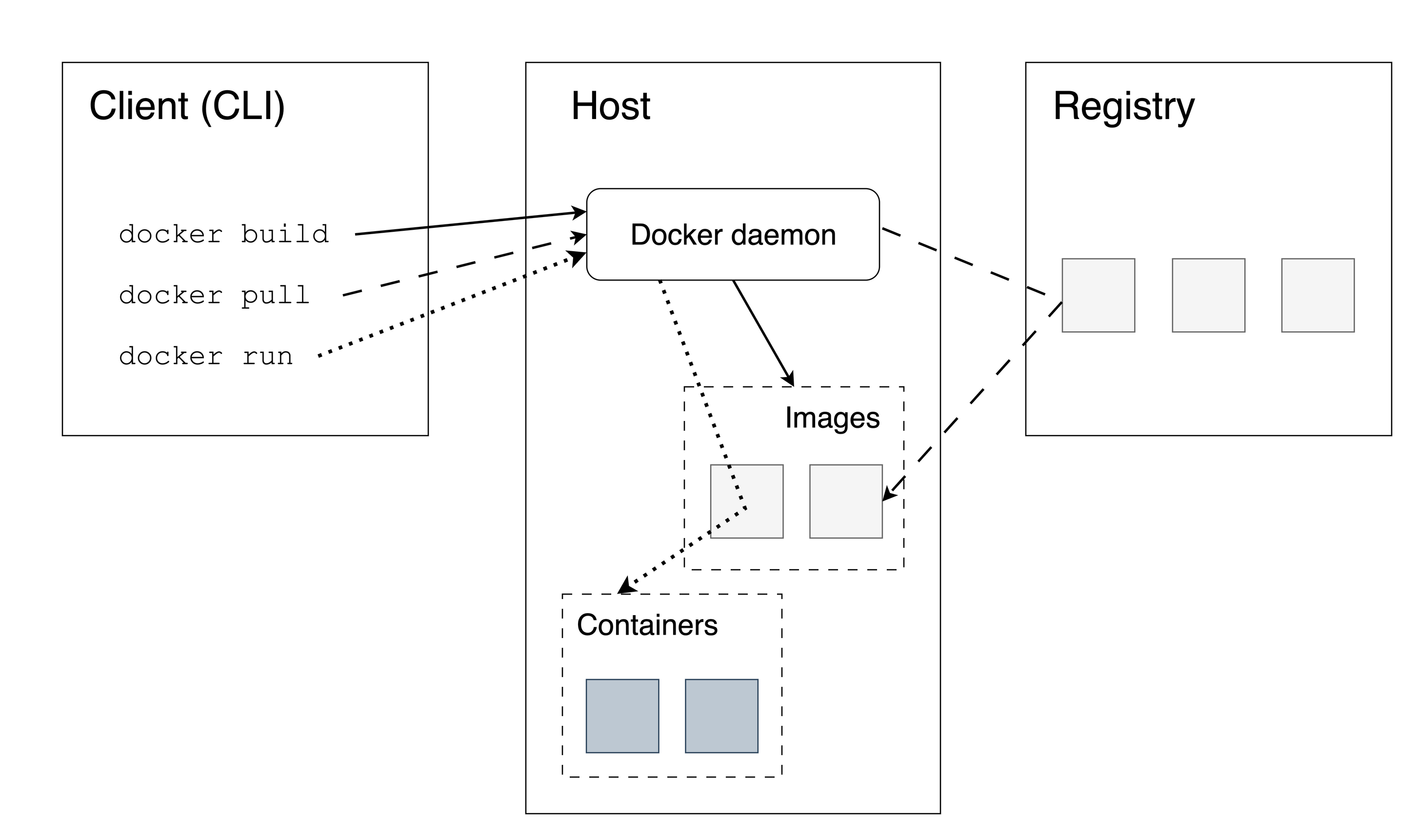
Figure 15.1: Docker architecture. Follow the solid, scattered and dotted lines to see how the Docker command line interface (CLI) interacts with the Docker daemon and the container registry for various commands.
You as the user, will use the command line as the client to the Docker Engine which exists on a host machine. The Docker Engine interfaces with the container registry to pull the necessary images for building a local copy of an image on the host for running an instance of a container.
15.1.1 Docker Engine
The Docker Engine is a client-server application that includes a
server (a long-running daemon process called dockerd that listens to API
requests), an application programming interface
(REST API) that specifies the interface that programs can use to talk to the
daemon process, and a command-line interface (CLI) that is the client-side
of Docker.
The CLI uses the REST API to control or interact with the Docker daemon. The daemon creates and manages Docker objects, such as images, containers, volumes, networks, etc.
15.1.2 Container Registries
A Docker registry stores Docker images. Docker Hub is a public registry and Docker is configured to look for images on Docker Hub by default. There are many other registries, or users can have their own private registries. You will see some examples later. Strictly speaking, container registries are for images and not containers.
15.1.3 Images
An image is a read-only template with instructions for creating a Docker container. You can view an image as a set of compressed files and metadata describing how these files – also called image layers – fit together.
An image can be based on another image with additional customization on top of this so-called base or a parent image. A base image is an image created from “scratch”, whereas a parent image is just another image that serves as the foundation for a new image. You might see the term base image used for both situations when reading tutorials. Don’t get confused, the Docker lingo has a few inconsistencies that we just have to accept and move on.
15.1.4 The Dockerfile
Docker builds images by reading the instructions from a file called
Dockerfile. A Dockerfile is a text document that contains all the
commands to assemble an image using the docker build CLI command. You
will learn more about the Dockerfile as part of the worked Shiny
examples later.
15.1.5 Containers
A container is a runnable instance of an image. Users can create, start, stop a container using the Docker API or CLI. It is also possible to connect a container to networks or attach storage to it.
By default, a container is isolated from other containers and the host machine. The degree of isolation can be controlled by the user and depends on whether it is connected to networks, storage, other containers, or the host machine.
15.1.6 The Docker Command Line
The most common Docker CLI commands are:
docker login: log into a Docker registry,docker pull: pull an image from a registry,docker build: build a Docker image based on aDockerfile,docker push: push a locally built image to a Docker registry,docker run: run a command in a new container based on an image.
You will learn more about these commands in the subsequent sections.